Wednesday, March 30, 2011

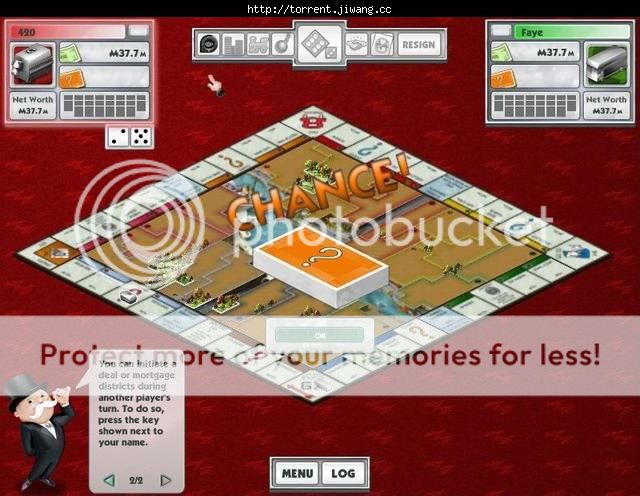
PC Games: Monopoly City (2010)


Be the top property developer and create your dream city! Build homes, industrial complexes, schools, and skyscrapers! But be warned a rival developer could build a hazard next to your property and make its value plummet!

System Requirements:

OS: Windows XP/Vista

CPU: 1.2 GHz

RAM: 512 MB

DirectX: 9.0

Hard Drive: 58 MB

CoolwareMax WebcamMax v7.2.3.6 Incl. Keygen and Patch-Lz0

Lz0 released an updated version of WebcamMax from CoolwareMax, enjoy!
Description:
CoolwareMax’ WebcamMax allows you to add videos, pictures and effects to virtual & real webcam and show them to others on messengers or do live stream on websites such as Ustream, JustinTV, etc. It works on all programs that support webcams: MSN, Yahoo, Camfrog, YouTube, ICQ, AIM, Skype, Paltalk, ANYwebcam, Stickam, and so on.
Features:
  • Thousands of Effects:
    Thousands of cool effects for your live video chats and video recording. You can download limitless effects at webcammax.com.
  • Video Recording:
    Record your fantastic videos show with our cool effects to broadcast on YouTube or webcammax.com.
  • Virtual Webcam:
    Share your video clips or desktop screen with family and friends through your Instant Messengers even without a real webcam.
  • Easy to Share:
    Directly share your video with family or friends on youtube.com. You can also upload and show your cool videos and photos on webcammax.com.
  • Doodling and PinP:
    Paint on the video box freely and directly. You can also broadcast different sources at the same time with Picture in Picture feature.
  • Work for All:
    Work for almost all webcam programs such as Windows Live Messenger, Skype, Yahoo Messenger, ICQ, Paltalk, Camfrog, YouTube, Ustream, JustinTV, and much more.
Release Name: CoolwareMax.WebcamMax.v7.2.3.6.Incl.Keygen.and.Patch-Lz0
Size: 23.71 MB

ImTOO Video Converter Ultimate v6.5.2.0216 Multilanguage-LAXiTY

Description:
ImTOO Video Converter is an easy to use program that lets you edit and convert video, audio, and animated images. This Total Video Converter is the best video converter software to convert between HD videos: H.264/MPEG-4 AVC, AVCHD (*.m2ts, *.mts), MKV, HD WMV, MPEG2/MPEG-4 TS HD. It can convert videos from HD to SD, convert various general video formats: AVI, MPEG-4, WMV, DivX, H.264/AVC, and extract audio and pictures from videos. Even create a video from pictures further with flexible merging/clipping/editing/splitting features. High-Definition (HD) video encoding and decoding like AVCHD to AVI makes it possible to get stunning High-Definition videos for HD video players. ImTOO Video Converter can turn any video/music file to be played on iPad, iPod, iPhone, Apple TV, Google Android phones, PSP, PS3, NDS, Wii, BlackBerry phone, iRiver, Creative Zen and other multimedia devices.
Features:
  • Convert between AVI, MPEG, WMV, DivX, MP4, MPEG-4 AVC, RM, MOV, MKV, 3GP, FLV, etc.
  • Extract audio from video: MP3, WMA, WAV, RA, M4A. Convert between various audio formats
  • Extract pictures and create video from pictures
  • High-Definition (HD) video encoding and decoding
  • Merge videos/pictures with fun transitions; Clip video files
  • Multiple video effects available
  • Convert video and audio for iPad, iPod, iPhone, Apple TV, Xbox 360, PSP, PS3, NDS, Wii, BlackBerry phone, iRiver, Creative Zen and other multimedia devices
Release name: ImTOO.Video.Converter.Ultimate.v6.5.2.0216.Multilanguage-LAXiTY
Size: 29.46 mb


http://www.filesonic.com/file/110976561/Imtoo_Video_Converter_Ultimate_V6_5_2
or
or

Tuesday, March 29, 2011

Surface Computing How it works

Touchscreen Salesbot

After you see the Surface in action, it doesn't take long to figure out just how attractive such a machine must be to the retail and service industries. Microsoft has partnered up with cellular provider T-Mobile, as well as hotel conglomerate Starwood Hotels and Resorts (which owns Sheraton, Westin and W Hotels, among others) and Vegas casino giant Harrah's Entertainment. Machines will be ready for deployment by the end of 2007.

So you could, for instance, walk into a T-Mobile store, pick up a phone you're considering buying and place it on the Surface. The table could then either link with the phone via Bluetooth or scan a code imprinted on the packaging to identify it. Suddenly, the phone is surrounded by graphical information (pricing, features, etc.). After selecting a service plan and any accessories, you just run your credit card through a reader built into the table (or, when RFID cards have become the norm, just slap your card on the tabletop) and your new phone is paid for. By the time you open the package, everything is set up — all without talking to a single employee.

It's easy to dismiss the concept as pure novelty — and at first it may well be. But ask yourself: When was the last time you made a bank withdrawal from a human teller? The Surface machine is networked and infinitely flexible. You could use it to order food in a restaurant. While you wait, you could play games or surf the Internet, and then eat off its surface. And every table in the joint could be a jukebox, a television or a billboard for advertising. (You didn't think advertisers would miss out on this, did you?)

And once you've gotten used to ordering calamari through a tabletop at your favorite eatery, you may want to use it to call up recipes on your kitchen counter. Surface machines will cost $5000 to $10,000 at launch, but as prices fall, similar devices may find their way into the home. "We view its migration as similar to that of plasma TVs," says Pete Thompson, Microsoft's general manager for surface computing. "People will see it in public spaces like bars and restaurants and want to expand it into other environments. " Its current coffee-table shape could evolve into a Pottery Barn-style catalog of computerized furniture — a dining room table, a wall-mounted panel, a desk or practically any surface. "It's a platform that can be put into various form factors," Thompson says. "This is a way to put technology into a piece of wood."

Computer scientists see technologies such as surface computing and multitouch as the key to a new era of ubiquitous computing, where processing power is embedded in almost every object and everything is interactive. Last year, New York University professor Jeff Han launched a company called Perceptive Pixel, which builds six-figure-plus custom multitouch drafting tables and enormous interactive wall displays for large corporations and military situation rooms. "I firmly believe that in the near future, we will have wallpaper displays in every hallway, in every desk. Every surface will be a point of interaction with a computer," Han says, "and for that to happen, we really need interfaces like this."

Short-term success for a technology can be measured by how much attention a product gathers when it is new. Long-term success is measured by how effectively that product disappears into the everyday routine of life. Surface computing has enormous potential to do both — it is a splashy new computer interface, surrounded by hype, but it is also, quite literally, furniture. It is a technology in its infancy, where even the engineers behind it can't predict its full impact; but the possibilities are everywhere, underhand and underfoot — on every surface imaginable

HOW IT WORKS


(1) Screen: A diffuser turns the Surface's acrylic tabletop into a large horizontal "multitouch" screen, capable of processing multiple inputs from multiple users. The Surface can also recognize objects by their shapes or by reading coded "domino" tags. (2) Infrared: Surface's "machine vision" operates in the near-infrared spectrum, using an 850-nanometer- wavelength LED light source aimed at the screen. When objects touch the tabletop, the light reflects back and is picked up by multiple infrared cameras with a net resolution of 1280 x 960.
(3) CPU: Surface uses many of the same components found in everyday desktop computers — a Core 2 Duo processor, 2GB of RAM and a 256MB graphics card. Wireless communication with devices on the surface is handled using WiFi and Bluetooth antennas (future versions may incorporate RFID or Near Field Communications) . The underlying operating system is a modified version of Microsoft Vista. (4) Projector: Microsoft's Surface uses the same DLP light engine found in many rear-projection HDTVs. The footprint of the visible light screen, at 1024 x 768 pixels, is actually smaller than the invisible overlapping infrared projection to allow for better recognition at the edges of the screen.

The Anti-PC

The name Surface comes from "surface computing," and Microsoft envisions the coffee-table machine as the first of many such devices. Surface computing uses a blend of wireless protocols, special machine-readable tags and shape recognition to seamlessly merge the real and the virtual world — an idea the Milan team refers to as "blended reality." The table can be built with a variety of wireless transceivers, including Bluetooth, Wi-Fi and (eventually) radio frequency identification (RFID) and is designed to sync instantly with any device that touches its surface.

One of the key components of surface computing is a "multitouch" screen. It is an idea that has been floating around the research community since the 1980s and is swiftly becoming a hip new product interface — Apple's new iPhone has multitouch scrolling and picture manipulation. Multitouch devices accept input from multiple fingers and multiple users simultaneously, allowing for complex gestures, including grabbing, stretching, swiveling and sliding virtual objects across the table. And the Surface has the added advantage of a horizontal screen, so several people can gather around and use it together. Its interface is the exact opposite of the personal computer: cooperative, hands-on, and designed for public spaces.

If it seems as though the Surface machine sprang up out of nowhere, that's only because Microsoft has been unusually secretive about it. Early designs of the table were displayed around the room as evidence of the product's long development cycle; rejected shapes included "squashed white egg" and "podium." Steven Bathiche, research manager for the project, has been involved since the beginning (in 2001) when he and fellow researcher Andy Wilson first dreamed up the idea of a tabletop computer. Bathiche spoke about the Milan project's evolution with the evident excitement of a man who's had to keep the most important thing he's ever done a secret for six years. "We've gone through several generations of this machine," he said. "The first was a proof-of-concept called T1, and we just hacked it into an IKEA table."

And there it was, partially disassembled, behind me. It looked as if they had attacked the prefab particleboard furniture from the Swedish superstore with a Sawzall, then stuffed in off-the-shelf computer parts, cameras, projectors and mirrors until it all worked. The idea went straight to the top: Once Bill Gates okayed it, surface computing moved from a heady research project to the
 nuts-and-bolts planning of product development.

Sunday, March 27, 2011

TOP useful Freeware software!

Office

OpenOffice - office suite ,,,PC Suite 602 - office suite,,AbiWord - text editor,,Atlantis Nova - text editor,,Microsoft PowerPoint Viewer  - power point files viewer,,Adobe Reader - PDF reader ,,Foxit PDF Reader - PDF reader,,PDFCreator - create PDF documents,,Doc Convertor - document convertor,,Convert - unit convertor,,Converber - unit convertor,,Sunbird - calendar/organizer,,EssentialPIM Free - calendar/organizer,,PhraseExpress - speed up your writing,,ATnotes - create notes on the desktop,,

Archive managers

7-Zip - compression program IZArc - compression programTugZIP - compression programCabPack - compression programUniversal Extractor - extract files from any type of archive

Internet

Firefox - web browser ,,Internet Explorer- web browser,,Maxthon - web browser,,Opera - web browser,,Avant Browser - web browser,,Thunderbird - email client,,PopTray - check for emails,,Free Download Manager - download manager,,FlashGet - download manager,,WellGet - download manager,,Download Master - download manager,,WGET - commandline download manager,,HTTrack - offline browser,,WebReaper - offline browser,,Yeah Reader - RSS reader,,GreatNews - RSS reader,,RSSOwl - RSS reader,,

P2P  this is sharing files on your computer with someone else.

?Torrent - torrent client Azureus - torrent clientBitComet - torrent clientABC - torrent clientBitTornado - torrent clientEMule - p2p clientSoulSeek - p2p clientShareaza - p2p clientDC++ - Direct Connect network clientPeerGuardian - IP blocker

Chat

Miranda - chat client MSN Messenger - chat clientYahoo Messenger - chat clientQIP - chat clientGaim - chat clientJAJC - chat clientHydraIRC - IRC clientTalkative IRC - IRC clientIceChat - IRC clientSkype - VOIP clientGoogle Talk - VOIP clientVoipStunt - VOIP client Gizmo - VOIP clientWengo - VOIP client

Security

AVG Free - antivirus Avast Home Free - antivirusAntiVir PersonalEdition - antivirusBitDefender Free - antivirusClamWin - antivirusCyberDifender - Internet Security SuiteAd-aware - anti-spywareSpybot: Search & Destroy - anti-spywareWindows Defender - anti-spywareSpywareBlaster - anti-spywareSpyware Terminator - anti-spywareTootkit Reveaker  - rootkit detection utility Winpooch - system protectionHiJack Free - system protectionHighJackThis - hijackers detector and removerKerio Personal Firewall - firewallSygate Personal Firewall - firewall ZoneAlarm - firewall AxCrypt - file encryptionSimple File Shredder - securely delete filesPuTTy - SSH clientKeePass - password managerLockNote - password managerNPassword - password managerMicrosoft Baseline Security Analyzer - identify security misconfigurations

Network

Hamachi - VPN client RealVNC - remote controlUltraVNC - remote controlEthereal - local area network administrationThe Dude - network administrationWireshark - network administrationAngry IP Scanner - IP scannerIP-Tools - IP scannerFree Port Scanner - IP scannerNetMeter - network bandwidth monitoring

Servers

FileZilla - FTP clientFileZilla Server - FTP serverEFTP - FTP client/serverXAMPP - integrated server package of Apache, mySQL, PHP and Perl WAMP - Apache, PHP5 and MySQL server

Audio

Foobar2000 - audio player WinAmp - audio player1by1 - audio playerJetAudio - audio playerXMPlay - audio playerXion - audio playerApollo - audio playerMediaMonkey - music organizerThe GodFather - music organizerDBpowerAMP - audio converterAudacity - audio converterWavePad - audio converter Kristal Audio Engine - audio editorExact Audio Copy - CD ripperAudiograbber - CD ripperCDex - CD ripperMp3 Tag Tools - tag editorMp3tag - tag editorTaggin? MP3 - tag editorMonkey?s Audio - APE compressor/decompre ssorMpTrim - mp3 editorWavTrim - wave editorEncSpot Basic - analyse mp3 files

Video

Windows Media Player - audio/video playerVLC - video playerMedia Player Classic - video playerMV2Player - video playerCrystalPlayer 1.95 - video playerZoom Player - video playerGOM Player - video playerViPlay - video playerDSPlayer - video playerVirtualDub - video editorCamStudio - video screen recordingAviSplit - Avi splitterVideo mp3 Extractor - rip audio from video filesFree iPod Converter - convert all popular video formats to iPod video MediaPortal - turning your PCinto a Media CenterThe FilmMachine

Image

Gimp - image editorPhotoFiltre - image editorPaint.net - image editorArtRage - image editorArtweaver - image editorIrfanView - image viewerPicasa - image viewerXnView - image viewerFastStone Image Viewer - image viewerFuturixImager - image viewerEasy Thumbnails - create thumbnails from imagesJoJoThumb - create thumbnails from images iWebAlbum - create web photo albumsJAlbum - create web photo albums3D Box Shot Maker - design quality box shotFastStone Capture - screen captureWinSnap - screen capture

3D

Blender3D - 3D renderer 3Delight Free - 3D rendererSketchUp - 3D modelingMaya Learning Edition - 3D modeling

Developers

AutoIt - task automationSciTE4AutoIt3 - text editor for AutoItAutoHotkey - task automationPHP Designer - PHP editorNotepad++ - text editorConTEXT Editor - text editorPSPad - text editorFoxEditor - text editorCrimson Editor - source code editorElfima Notepad - text editorNotepad2 - text editorNvu - HTML editorAlleycode - HTML editorBlockNote - web page editorWeaverslave - web page editor

CD/DVD

DeepBurner - CD/DVD burner CDBurner XP Pro - CD/DVD burnerBurnAtOnce - CD/DVD burnerExpress Burn - CD/DVD burnerZilla CD-DVD Rip?n?Burn - CD/DVD burnerImgBurn - ISO, BIN burnerDaemon tools - virtual CD/DVDDVD Decrypter - DVD ripperDVD Shrink - DVD ripperNero CD-DVD Speed - CD/DVD info and quality test

Codecs

GSpot - codec information AC3Filter - audio codecXvid - video codecQuickTime Alternative - video codecReal Alternative - video codecK-Lite Codec Pack - all codecs

Monday, March 14, 2011

Computer Byte and strong passwords

Q:
What do all those error codes (like 404) mean?
A:
It happens to all of us. We're surfing along, and up comes an error.
What do all those error codes mean?
Here's a quick rundown of the most common:
 
400 - Bad Request - You probably typed in a URL wrong,
the server has no clue what you're looking for,
or you aren't allowed to have access.
Usually, it's a matter of the URL being typing in wrong.
Maybe you mixed upper and lowercase letters or something.
 
401- Unauthorized Request - you tried to get to something
on the web server you're not allowed to play with.
In other words, you ain't on the party list.
 
403 - Forbidden - You can't access the page.
You may not have access (it may require a password),
or it may be blocked from your domain.
 
404- Not Found - The page you were trying to look at was not
found on the server.
This is probably the most common error you'll come across.
What has probably happened is that the web page
you were going to has been removed or re-named.
 
500 - Internal error - Usually caused by a CGI error.
You fill out a form, but the script used to process it is not working properly.
 
503 - Service Unavailable - The server may be overloaded,
down, or have other similar problems. Try later.
 
~ Steve
 
 
OK, This next concerns all of us
 
Computers 101
Q:
How can I ensure that I have the strongest password possible to secure my computer from any intruders?
A:Given enough time and using the correct tools,
a hacker can break into a computer and access the files.
One reason hackers are able to break into computer systems
so easily is because the user did not create a strong enough password.
 
Many computer users create passwords after their family pets,
favorite objects and familiar words.
 
This is an extremely bad idea.
 
For starters, don’t choose a password that is in the dictionary.
It takes password cracking software about 10 seconds
to crack a word that is in the dictionary.
 
The password cracking software uses a dictionary file
 which contains every word in the dictionary.
The software takes the words and sends them at the object
it is trying to crack. This dictionary file is usually easy to update,
since a site on Google provides hundreds of results.
 
For more effective passwords, try taking two or three words,
 slicing them at random points and them crunching them together.
For example, I could use house and railroad.
My outcome might result as “houroad,” which is not in the dictionary.

However the above is not always the best way to go when choosing password.
Eventually, it will be cracked, probably within nine days or so.
If you are locking important information, this is not good enough.
 
The best password that a user can create is by mixing
upper and lower case letters with numbers.
 
 An example of this would be “5xBM34z.”
 
This password would probably take around 238 years or so to crack.
(I don’t know a single hacker who would want to wait that long).
These types of passwords are hard to memorize, but are the hardest to crack.
 
 
The length of the password is a major factor as well.
The longer the password, the longer it takes to crack.
 
To make the most complex password, a user can also add
symbols to their password.
Again, the greater the complexity of the password,
the greater the time it takes to break it.

Saturday, March 12, 2011

10 things you can do when Windows XP won't boot

When your computer hardware appears to power up okay, but the Windows XP operating system won't boot properly, you have to begin a troubleshooting expedition that includes getting into the operating system, determining the problem, and then fixing it. To help you get started on this expedition, here are 10 things you can do when Windows XP won't boot.

#1: Use a Windows startup disk

One of the first things you should reach for when troubleshooting a Windows XP boot problem is a Windows startup disk. This floppy disk can come in handy if the problem is being caused when either the startup record for the active partition or the files that the operating system uses to start Windows have become corrupted.

To create a Windows startup disk, insert a floppy disk into the drive of a similarly configured, working Windows XP system, launch My Computer, right-click the floppy disk icon, and select the Format command from the context menu. When you see the Format dialog box, leave all the default settings as they are and click the Start button. Once the format operation is complete, close the Format dialog box to return to My Computer, double-click the drive C icon to access the root directory, and copy the following three files to the floppy disk:

* Boot.ini
* NTLDR
* Ntdetect.com

After you create the Windows startup disk, insert it into the floppy drive on the afflicted system and press [Ctrl][Alt][ Delete] to reboot the computer. When you boot from the Windows startup disk, the computer will bypass the active partition and boot files on the hard disk and attempt to start Windows XP normally.

#2: Use Last Known Good Configuration

You can also try to boot the operating system with the Last Known Good Configuration feature. This feature will allow you to undo any changes that caused problems in the CurrentControlSet registry key, which defines hardware and driver settings. The Last Known Good Configuration feature replaces the contents of the CurrentControlSet registry key with a backup copy that was last used to successfully start up the operating system.

To use the Last Known Good Configuration feature, first restart the computer by pressing [Ctrl][Alt][ Delete]. When you see the message Please select the operating system to start or hear the single beep, press [F8] to display the Windows Advanced Options menu. Select the Last Known Good Configuration item from the menu and press [Enter].

Keep in mind that you get only one shot with the Last Known Good Configuration feature. In other words, if it fails to revive your Windows XP on the first attempt, the backup copy is also corrupt.

#3: Use System Restore

Another tool that might be helpful when Windows XP won't boot is System Restore. System Restore runs in the background as a service and continually monitors system-critical components for changes. When it detects an impending change, System Restore immediately makes backup copies, called restore points, of these critical components before the change occurs. In addition, System Restore is configured by default to create restore points every 24 hours.

To use System Restore, first restart the computer by pressing [Ctrl][Alt][ Delete]. When you see the message Please select the operating system to start or hear the single beep, press [F8] to display the Windows Advanced Options menu. Now, select the Safe Mode item from the menu and press [Enter].

Once Windows XP boots into Safe mode, click the Start button, access the All Programs | Accessories | System Tools menu, and select System Restore. Because you're running in Safe mode, the only option on the opening screen of the System Restore wizard is Restore My Computer To An Earlier Time, and it's selected by default, so just click Next. Then, follow along with the wizard to select a restore point and begin the restoration procedure.

#4: Use Recovery Console
When a Windows XP boot problem is severe, you'll need to use a more drastic approach. The Windows XP CD is bootable and will provide you with access to a tool called Recovery Console.

To boot from the Windows XP CD, insert it into the CD-ROM drive on the problem system and press [Ctrl][Alt][ Delete] to reboot the computer. Once the system begins booting from the CD, simply follow the prompts that will allow the loading of the basic files needed to run Setup. When you see the Welcome To Setup screen, shown in Figure A, press R to start the Recovery Console.

Figure A
You'll then see a Recovery Console menu, like the one shown in Figure B. It displays the folder containing the operating system's files and prompts you to choose the operating system you want to log on to. Just press the menu number on the keyboard, and you'll be prompted to enter the Administrator's password. You'll then find yourself at the main Recovery Console prompt.

Figure B

#5: Fix a corrupt Boot.ini

As the Windows XP operating system begins to load, the Ntldr program refers to the Boot.ini file to determine where the operating system files reside and which options to enable as the operating system continues to load. So if there's a problem rooted in the Boot.ini file, it can render Windows XP incapable of booting correctly.

If you suspect that Windows XP won't boot because Boot.ini has been corrupted, you can use the special Recovery Console version of the Bootcfg tool to fix it. Of course, you must first boot the system with the Windows XP CD and access the Recovery Console as described in #4.

To use the Bootcfg tool, from the Recovery Console command prompt, type

Bootcfg /parameter

Where /parameter is one of these required parameters:

* /Add--Scans the disk for all Windows installations and allows you to add any new ones to the Boot.ini file.
* /Scan--Scans the disk for all Windows installations.
* /List--Lists each entry in the Boot.ini file.
* /Default--Sets the default operating system as the main boot entry.
* /Rebuild--Completel y re-creates the Boot.ini file. The user must confirm each step.
* /Redirect--Allows the boot operation to be redirected to a specific port when using the Headless Administration feature. The Redirect parameter takes two parameters of its own, [Port Baudrate ] | [UseBiosSettings] .
* /Disableredirect- -Disables the redirection.

#6: Fix a corrupt partition boot sector

The partition boot sector is a small section of the hard disk partition that contains information about the operating system's file system (NTFS or FAT32), as well as a very small machine language program that is crucial in assisting the operating system as it loads.

If you suspect that Windows XP won't boot because the partition boot sector has been corrupted, you can use a special Recovery Console tool called Fixboot to fix it. Start by booting the system with the Windows XP CD and accessing the Recovery Console as described in #4.

To use the Fixboot tool, from the Recovery Console command prompt, type

Fixboot [drive]:

Where [drive] is the letter of the drive to which you want to write a new partition boot sector.

#7: Fix a corrupt master boot record

The master boot record occupies the first sector on the hard disk and is responsible for initiating the Windows boot procedure. The master boot record contains the partition table for the disk as well as a small program called the master boot code, which is responsible for locating the active, or bootable, partition, in the partition table. Once this occurs, the partition boot sector takes over and begins loading Windows. If the master boot record is corrupt, the partition boot sector can't do its job and Windows won't boot.

If you suspect Windows XP won't boot because the master boot record has been corrupted, you can use the Recovery Console tool Fixmbr to fix it. First, boot the system with the Windows XP CD and access the Recovery Console as described in #4.

To use the Fixmbr tool, from the Recovery Console command prompt, type

Fixmbr [device_name]

Where [device_name] is the device pathname of the drive to which you want to write a new master boot record. For example, the device pathname format for a standard bootable drive C configuration would look like this:

\Device\HardDisk0

#8: Disable automatic restart

When Windows XP encounters a fatal error, the default setting for handling such an error is to automatically reboot the system. If the error occurs while Windows XP is booting, the operating system will become stuck in a reboot cycle--rebooting over and over instead of starting up normally. In that case, you'll need to disable the option for automatically restarting on system failure.

When Windows XP begins to boot up and you see the message Please select the operating system to start or hear the single beep, press [F8] to display the Windows Advanced Options Menu. Then, select the Disable The Automatic Restart On System Failure item and press [Enter]. Now, Windows XP will hang up when it encounters the error and with any luck, it will display a stop message you can use to diagnose the problem.

#9: Restore from a backup

If you can't seem to repair a Windows XP system that won't boot and you have a recent backup, you can restore the system from the backup media. The method you use to restore the system will depend on what backup utility you used, so you'll need to follow the utility's instructions on how to perform a restore operation.

#10: Perform an in-place upgrade

If you can't repair a Windows XP system that won't boot and you don't have a recent backup, you can perform an in-place upgrade. Doing so reinstalls the operating system into the same folder, just as if you were upgrading from one version of Windows to another. An in-place upgrade will usually solve most, if not all, Windows boot problems.

Performing a Windows XP in-place upgrade is pretty straightforward. To begin, insert the Windows XP CD into the drive, restart your system, and boot from the CD. Once the initial preparation is complete, you'll see the Windows XP Setup screen (shown earlier in Figure A). Press [Enter] to launch the Windows XP Setup procedure. In a moment, you'll see the License Agreement page and will need to press [F8] to acknowledge that you agree. Setup will then search the hard disk looking for a previous installation of Windows XP. When it finds the previous installation, you'll see a second Windows XP Setup screen, as shown in Figure C.

Figure C
This screen will prompt you to press R to repair the selected installation or to press [Esc] to install a fresh copy of Windows XP. In this case, initiating a repair operation is synonymous with performing an in-place upgrade, so you'll need to press R. When you do so, Setup will examine the disk drives in the system. It will then begin performing the in-place upgrade.

Keep in mind that after you perform an in-place upgrade or repair installation, you must reinstall all updates to Windows.